The Virtual OS Museum
Copyright 2004-2026 Andrew Warkentin (launcher, scripts, and metadata only) See LICENSE.md and LICENSE-cc.md for license information. The launcher, scripts, and metadata are licensed for non-commercial redistribution only.
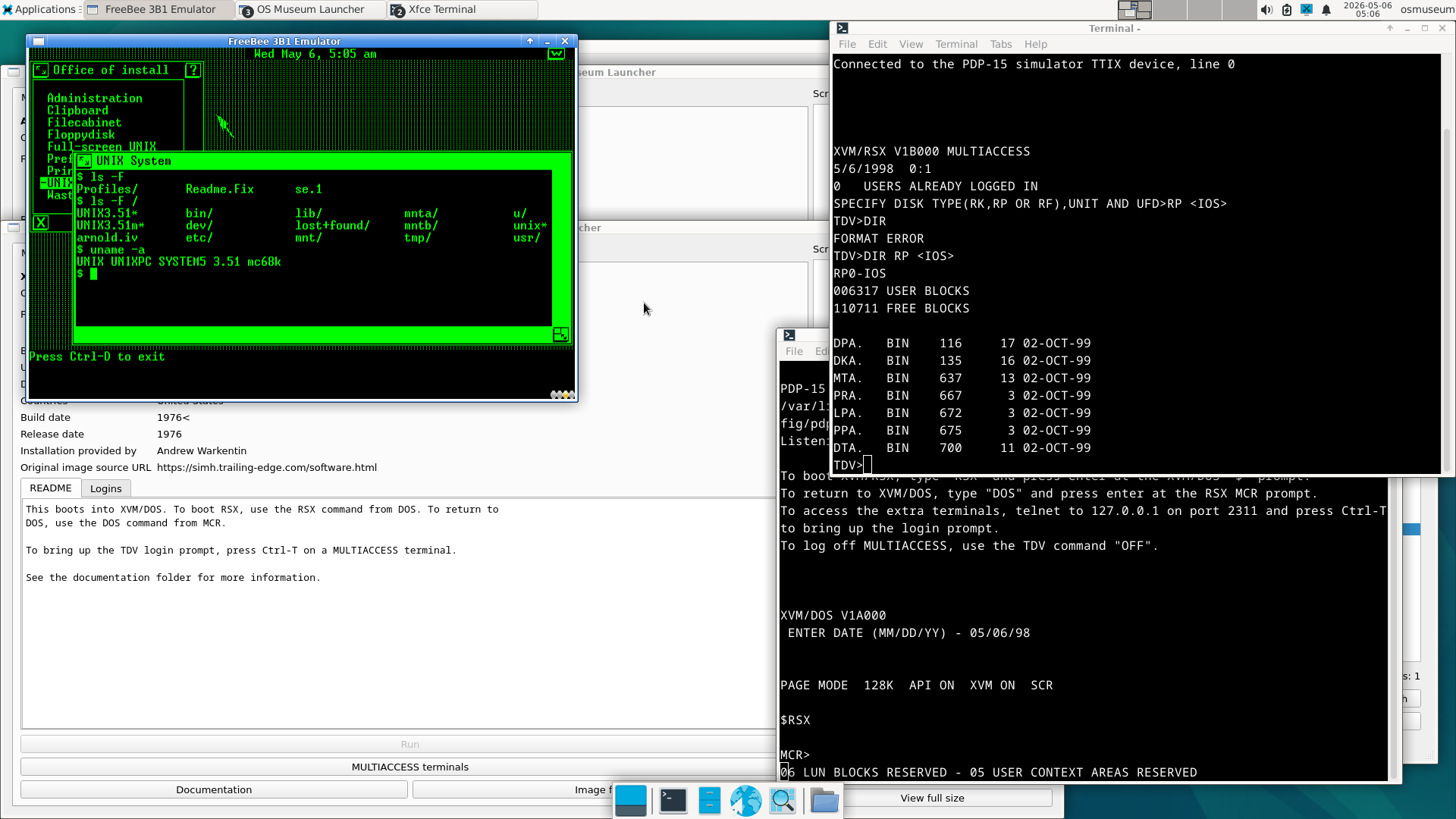
This is an interactive virtual museum of operating systems (and standalone applications) running under emulation, implemented as a Linux VM for QEMU, VirtualBox, or UTM.
A custom emulator-independent launcher is provided, and all OSes and emulators are pre-installed and pre-configured within the Linux VM. QEMU, VirtualBox, and UTM are bundled, and one-click launch scripts are provided for Windows and Linux; these use an existing VirtualBox or QEMU install if one is found, or run the bundled one if no existing install is present.
I’m always open to support/contributions, be that in the form of sending me OS images/media to include, contributing to the launcher/metadata, or monetary support in the form of tips and subscriptions; please see the contact section for more information.
Please note that this is a preliminary release; I have tried to make sure every emulator works, but I am still in the process of testing all of the individual guest VMs. Please open an issue on the GitLab project or message/email me if something is broken.
Contents
- What’s included
- Setting up and running the VM
- Where to contact/follow me and how to support my work
- Credits
What’s included
Currently over 1700 installations are included, representing over 250 different platforms and over 600 distinct OSes, spanning the entire history of stored-program computing from the Manchester Baby of 1948 (the first stored-program computer) to the present day. This is the result of over two decades of collecting VM images. I am always adding new VMs to the collection, including working on emulators to fix/finish them so that I can add previously un-emulatable OSes. I probably have enough images available to at least reach somewhere between 2000 and 3000 installations.
Nearly every well-known OS is represented here in some form (along with a lot of very obscure ones as well). However, some are still somewhat underrepresented (but more installations for underrepresented categories are on the way). Generally the focus is on breadth over depth; multiple major versions of the same OS are often included, but usually not multiple close minor versions or ports of the same minor version (with a few exceptions).
The eventual goal is to include representative versions of every OS that can be downloaded and run in emulation. As far as I can tell, this is the world’s largest publicly available collection of ready-to-run emulated OS images.
Highlights:
- Baby factor demo (1948) (first program for a stored-program computer; various other programs for the Baby are also included)
- Scheme A (1951) (first operating system)
- IBSYS, 1410 OS, 1410 POS (1960-71) (early sequential batch OSes from IBM)
- B5000 MCP (first OS written in a higher-level language and first commercial implementation of virtual memory)
- CTSS (1961-72) (first recognizably modern OS and first multiuser OS)
- Multics (1964-present) (first with a hierarchical filesystem; major influence on Unix)
- Various versions of Research Unix, including:
- The original PDP-7 Unix “V0” (1969)
- PDP-11 Unix V1 and V4-V7 (1970-79)
- Late Research Unix versions 8/9 (1985-86)
- Various other minicomputer and mainframe OSes
- Xerox Alto OS and Smalltalk (1976-81) (first workstation and first GUI with overlapping windows)
- Many different distributions of CP/M 1, 2, and 3
- Most well-known home computer OSes (some platforms are sort of underrepresented)
- Several early versions of 86-DOS
- Many different versions of MS-DOS/PC-DOS
- Xerox ViewPoint/GlobalView (first GUI with a desktop metaphor)
- Visi On (1983) (first GUI for PC)
- Apple Lisa OS (1983-84) (Apple’s first GUI OS, which was a significant influence on Mac OS and most other later GUIs)
- All major versions of Classic Mac OS from early pre-releases to 9.x (1983-2001)
- All major versions of DOS-based Windows including both RTM and representative alphas/betas (1985-2000)
- Various versions of NeXTStep (the predecessor to modern macOS)
- Various other workstation Unices for both well-known and obscure platforms
- Various versions of NT-based Windows, both pre-release and RTM, from 3.1 to pre-reset Longhorn betas
- Various OSes for early mobile devices like pocket computers and PDAs (e.g. EPOC, Palm OS)
- Various Linux distros (mostly focusing on 90s-00s; Linux is somewhat underrepresented at the moment)
- All publicly released major versions of Mac OS X for Power Mac, including DPs and the public beta, along with RTM versions
- Various early versions of Android including pre-releases (2007-11)
- Various hobby/alternative OSes up to some very recent ones
Installations have been sourced from various places; some VMs are ones I’ve installed myself, whereas others I have downloaded as pre-installed images. Wherever possible, I’ve tried to credit the original sources for images I got in pre-installed form.
Everything included has been tested to boot and run with at least basic functionality at some point. Some OSes/emulators may be flaky; if this is the case, the README displayed by the launcher will usually note any issues.
What’s not included
Only VMs that properly run an OS or standalone application are included. Emulators that run a boot ROM but aren’t yet complete enough to boot an OS are not, nor are OSes where the installer can be booted but the install fails.
User-level emulators that directly implement the system call API of an OS are not included, except when used to run other emulators or hosted OSes (e.g. DOSbox-X is used to run quite a few emulators here, but DOS software other than emulators and hosted OSes is always run on system-level emulators running real DOS), or if they run within . Otherwise only emulators running original OSes (or standalone applications) as well as hosted OSes running on Linux natively or through a compatibility layer are included.
Regular console and arcade games (neither commercial nor homebrew) are generally not included, with the only exceptions currently being home computer platforms derived from consoles, certain obscure arcade machines (especially those derived from computers), and homebrew OSes for consoles. This is because console/arcade games are usually well-preserved elsewhere, can usually be run without installation/configuration,and are often still currently sold and subject to takedown requests.
Commercial OS versions that are newer than 10 years old, are still sold, or have recently been subject to known takedown requests from the copyright holder aren’t included either (if you are the copyright holder of anything here and want it removed, please contact me and I will remove it ASAP).
Setting up and running the VM
VM variants
Both a “full” and a “lite” version are available; the full version includes everything pre-downloaded and can be used fully offline, whereas the lite version doesn’t include any disk/tape/etc. images for installations, downloading them the first time an installation is run (which means an internet connection is required to run an installation that hasn’t yet been downloaded).
Launching the host VM
Quick-start configurations/scripts are provided for Linux, Windows, and macOS on both x86-64 and ARM64, but it should be possible to run this on any platform that runs QEMU or VirtualBox.
The host VM itself is currently x86-only, so if you are on ARM or any other non-x86 platform, performance will be rather limited. An ARM-native host VM is planned for a future release (certain emulators within this will still be run within user-mode x86 emulation since the source for them isn’t available, but the majority of these are for hardware that wasn’t particularly fast in the first place).
Running on Linux
Run either Run_Linux_x86.AppImage or Run_Linux_ARM.AppImage depending on
whether you are on x86 or ARM (these may be run either from most file managers
or a terminal).
On x86, it will run under VirtualBox, with the script automatically adding it to
the list of VMs (if it isn’t there already) and launching it. If a system-wide
installation of VirtualBox is present, it will run that, but an AppImage of
VirtualBox is provided and will be run automatically in case a system-level
install isn’t present. Moving the containing folder after the VM has been added
may break it; to fix it after moving it, remove the entry from the list in
VirtualBox and re-run Run_Linux_x86.AppImage.
On ARM, it will run in QEMU. Similar to VirtualBox on x86, if a system-wide install is present, it will use that, but there is also an AppImage provided as well in case no system-wide QEMU install is present.
Running on Windows
Run Run_Windows(.cmd); this works on both x86 and ARM. Similarly to on Linux,
this will run under VirtualBox on x86 and QEMU on ARM (once the ARM-based host
VM has been released, VirtualBox will likely be used by default on ARM).
On x86, the launch script will install VirtualBox if it isn’t yet installed; you
will see the normal VirtualBox install wizard in this case. VirtualBox requires
the Visual C++ runtime library; the installer for this will be run before the
VirtualBox installer if the library isn’t yet installed. You can ignore any
warnings from the VirtualBox installer about missing Python dependencies; this
image doesn’t require the VirtualBox Python API at all. Similarly to on Linux,
the VM will be automatically added to VirtualBox’s list of VMs if it isn’t
already in the list, and moving the folder after running it may cause breakage;
removing the VM from the list and re-running Run_Windows.cmd should fix this.
On ARM, the VM will be run under QEMU, just as on Linux, although unlike on Linux it will always use the bundled install of QEMU. The Windows version of QEMU has shared folders disabled so the only way to transfer files to the VM is to use SFTP; the port is forwarded to 127.0.0.1:8022.
Running on macOS
To run this on macOS, first install UTM by opening apps/UTM.dmg and dragging UTM
to the Applications folder if you don’t already have UTM installed. Click on
VirtualOSMuseum.utm to run the VM.
Running on other platforms
This can be run on any platform that runs a sufficiently recent version of QEMU
or VirtualBox. To run on VirtualBox, run scripts/setup_and_run_vbox from a
terminal; this requires an existing install of VirtualBox if not running on
Linux. To run on QEMU, run scripts/run_qemu from a terminal. It may be
possible to run this on other hypervisors/VMMs, but those haven’t been tested.
Using the launcher within the host VM
The host VM automatically boots to the desktop, logging in automatically as the
osmuseum user (the password for both osmuseum and root is osmuseum, but
usually you won’t need the password because in addition to logging in
automatically, sudo is configured to not require a password). The launcher will
automatically start on every boot, and this README will be opened on the first
boot. The launcher is able to check for updates to itself, system packages, and
guest VMs (this includes downloading any new VMs that have been released) and on the first boot, it will ask if you want to automatically check for updates. Even if automatic updates are turned off, you may still manually run them from the File menu.
Main launcher window
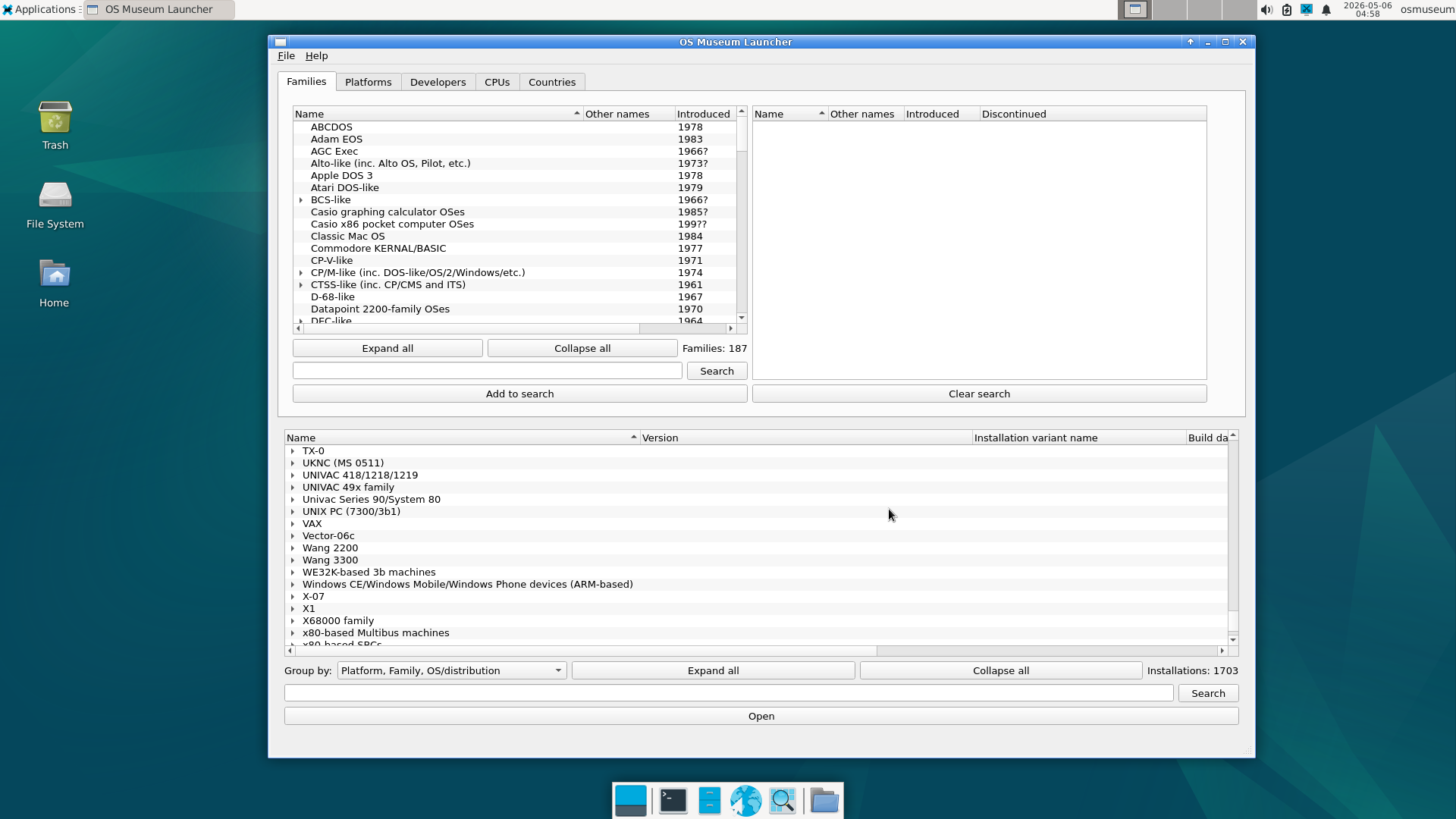
The main window of the launcher has a list of installations on the bottom, with a search box that allows searching by name and a menu to change how installations are grouped. On top are tabs with lists of various other categories, which can be used to search for installations in particular categories. The “Search” button searches within the category lists, and the “Add to search” button adds the selected categories to the search, limiting the installation list to only installations in those categories. The “Clear search” button clears the search list for the selected category tab, updating the installation list to no longer be limited by category.
Installation window
Main installation tab
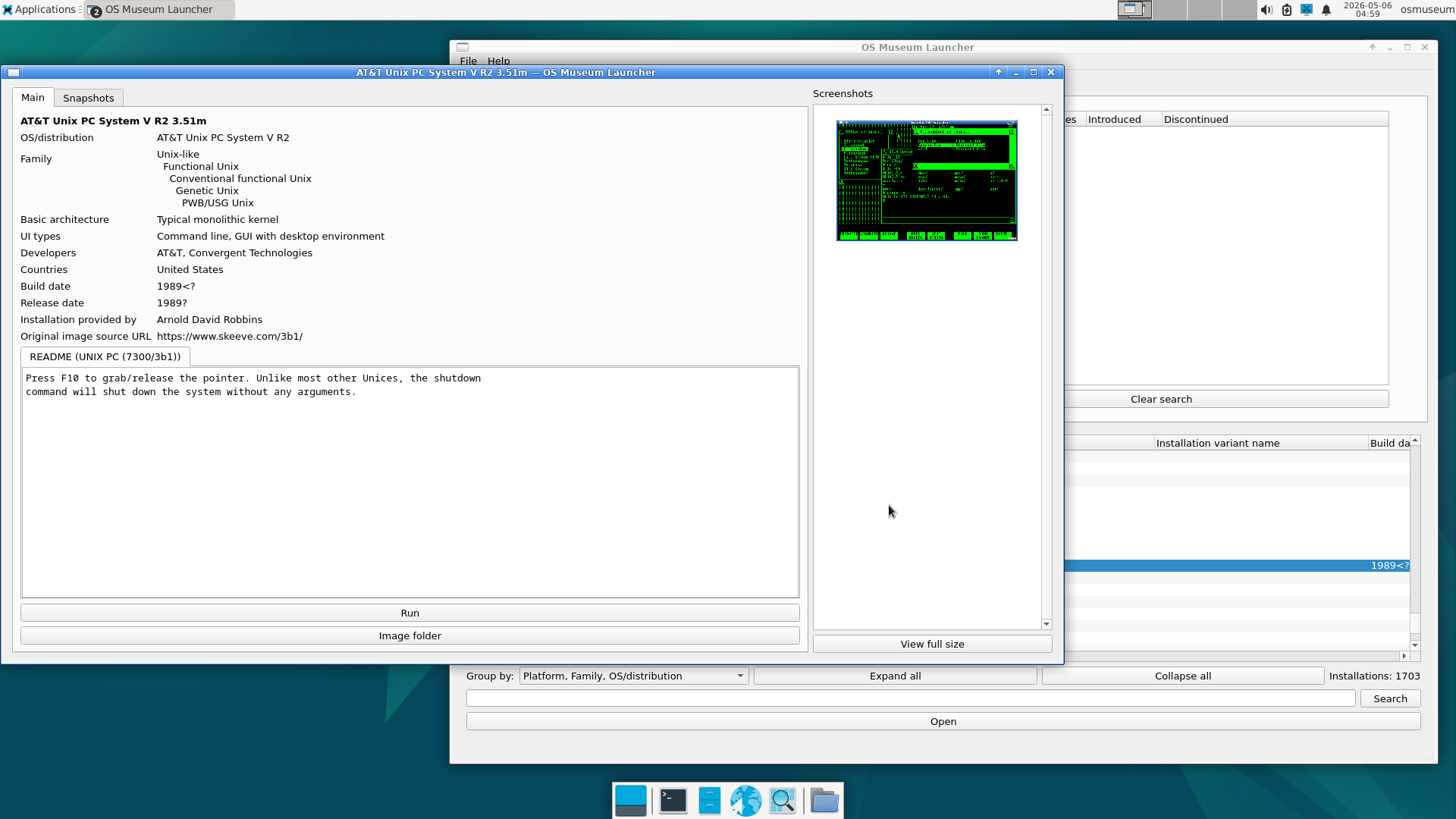
The Open button opens a separate window for the selected installation. The main tab displays information and documentation (such as READMEs, logins, and screenshots) for the installation and has buttons to run the VM and open its folder in the file manager. The launcher tracks the state of each VM and prevents multiple instances of a single VM from running simultaneously (it is possible to run multiple different VMs simultaneously as long as they don’t require exclusive access to resources like network interfaces). If you are running the download-on-demand version of the OS museum and the VM hasn’t been downloaded, the run button will automatically download the VM before running it. If applicable, there will also be buttons to open new terminal/file transfer connections, open the documentation folder, and view output files such as those from emulated printers and card punches.
Snapshots
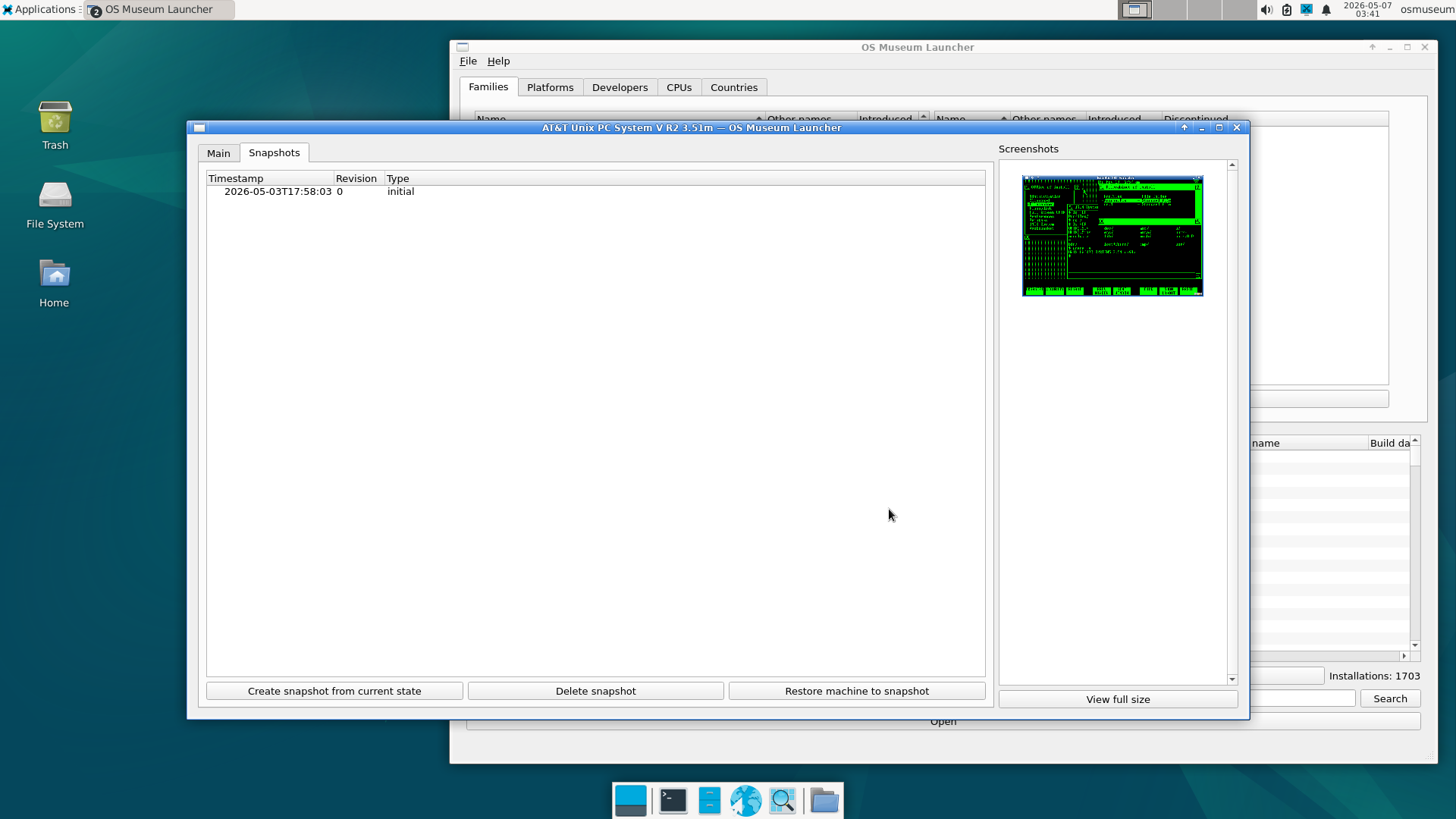
The snapshot tab displays a list of file system snapshots of the VM, allowing
the on-disk state to be saved and restored (e.g. reverting to a known-working
copy if the VM ends up getting corrupted). However, this can’t be used to save
and restore the memory of a running VM, and any attempt to save or restore state
of a running VM will fail. Snapshots with the type initial are automatically
created for every VM initially included in the full version of the OS museum as
well as ones that have been installed later (they are created every time a new
revision of the particular VM package is installed). Snapshots with the type
final_pre_upgrade are created when a VM has been replaced by a new version if it has been modified (these are not created if the VM is unmodified when the new
image revision is installed). Note that “revisions” here are not versions of
the OS within the VM itself, but updated images of the same OS version (e.g.
to add applications or change to a better emulator/configuration). The “Create
snapshot from current state” button manually creates a snapshot from the
current on-disk state. “Delete snapshot” deletes the selected snapshot (if you
try to delete the initial snapshot for the most recent revision, it will fail;
the only way to delete such a snapshot is from the command line with the -f
option to snapshot_delete). The “Restore machine to snapshot” button reverts
the VM to the selected snapshot, creating a snapshot of type pre_restore to
preserve the overwritten state.
Miscellaneous

The File menu of the launcher has options to regenerate the database from the info files (only necessary if you manually create a VM rather than installing it from a package, since the database is automatically updated when new VMs are added or info is changed), manually check for updates to system and guest VM packages (installing them if necessary), open the settings window, and exit the launcher. The settings window has controls to switch between downloading all guest VM contents on update or only downloading the contents when run, select a repository, enable/disable the check for updates on startup, and show or hide the short name (as used in filenames) of installations and other records.
Where to contact/follow me and how to support my work
I post tours/reviews of OSes in the OS museum, as well as updates on OSes I am installing and emulators I am working on. I don’t have a set schedule, but I install multiple new OS images a week and try to make at least a few videos/blog posts a month.
Discord server
Fluxer community (bridged to Discord)
BlueSky
Email: andreww591 (replace this with at) gmail.com
I’m always open to contributions of OS images and media, as long as they aren’t too similar to something that’s already included. I do already have a lot of OS images that I haven’t installed, so depending on how interesting I find the particular OS to be, I may or may not install stuff that is sent to me right away.
Similarly, I welcome contributions to the launcher or metadata (except for low-effort LLM slop). I have tried to test the launcher a fair bit but as things stand it’s still a little preliminary and may still have major bugs, and there are definitely several features I want to add to it (the biggest ones probably being an “exhibit” feature that combines lists of VMs relevant to particular topics with a short descriptive article for each, as well as some kind of integration with a dedicated wiki).
Monetary support is also welcome, either one-time tips or subscriptions. Subscribing on Patreon gives you access to a patron-only channel on the Discord/Fluxer servers, priority for suggestions of software to add to the OS museum, early ad-free access to my videos, and a shout-out in both videos and the OS museum credits file.
I also accept tips, either on Ko-fi or in cryptocurrency (I’m not at all a cryptobro and think blockchain has a whole bunch of technical, economic, and social issues, but if you want to send me your Dunning-Krugerrands, I’m not going to turn them down).
Bitcoin: bc1qycw6pleuaad59rnmus8xt5hxz6cff20rflcpmt
Ether: 0x3db83D742e053f91DfDb28fFE5683Df83836f22A
Despite my techinical skills, finding a job has been extremely difficult for me due to multiple reasons (limited local market for tech jobs, lack of actual work experience with specific technologies required by the few jobs there are, incompatibility with typical corporate culture due to autism, and an extremely crippling tendency to withdraw and stay quiet), and the only money I have coming in at the moment is from income support, so subscriptions/tips are very much welcome.
Similarly, if anybody has freelance or otherwise flexible remote work available, I might be interested in that, although my experience with web/cloud development is quite limited. I would be especially interested in corporate sponsorship to work on my other major project, a QNX-like RTOS called UX/RT; I did have some people from a major conglomerate interested in using it as a QNX replacement (to the point where they paid me to fly out to meet them) but they indefinitely suspended their project for reasons outside my control.
Credits
This project wouldn’t be possible without the many people who have developed emulators and provided pre-installed images. The list is pretty long, so it’s a separate file from the README.